
GitHub App Integration
Overview
The GitHub App Integration enables seamless integration between Nirmata and your GitHub repositories. By installing Nirmata’s GitHub App, you can enable GitOps workflows, automated policy remediation, and other Git-based operations across your Nirmata platform.
This integration is used by:
- AI Agents (e.g., Remediator Agent) for creating pull requests with policy fixes
- GitOps workflows for repository synchronization
- Policy management for Git-based policy storage
- Compliance operations for tracking and remediating violations
Benefits
- ✅ One-Click Installation: Install Nirmata’s GitHub App directly from the UI
- ✅ Enhanced Security: Uses short-lived tokens with fine-grained permissions
- ✅ Centralized Management: Manage GitHub integration through Nirmata Control Hub
- ✅ Enterprise Ready: Designed for organizational use with proper access control
- ✅ Audit Trail: Complete tracking and logging of all GitHub operations
- ✅ Multi-Organization Support: Install across multiple GitHub organizations
- ✅ No Secret Management: No need to manage tokens or keys manually
Installing GitHub App Integration
Follow these steps to connect your GitHub account to Nirmata:
Step 1: Navigate to Integrations
- Log in to Nirmata Control Hub
- Click on Settings in the left sidebar
- Select Integrations
- Locate the GitHub card in the Devops section
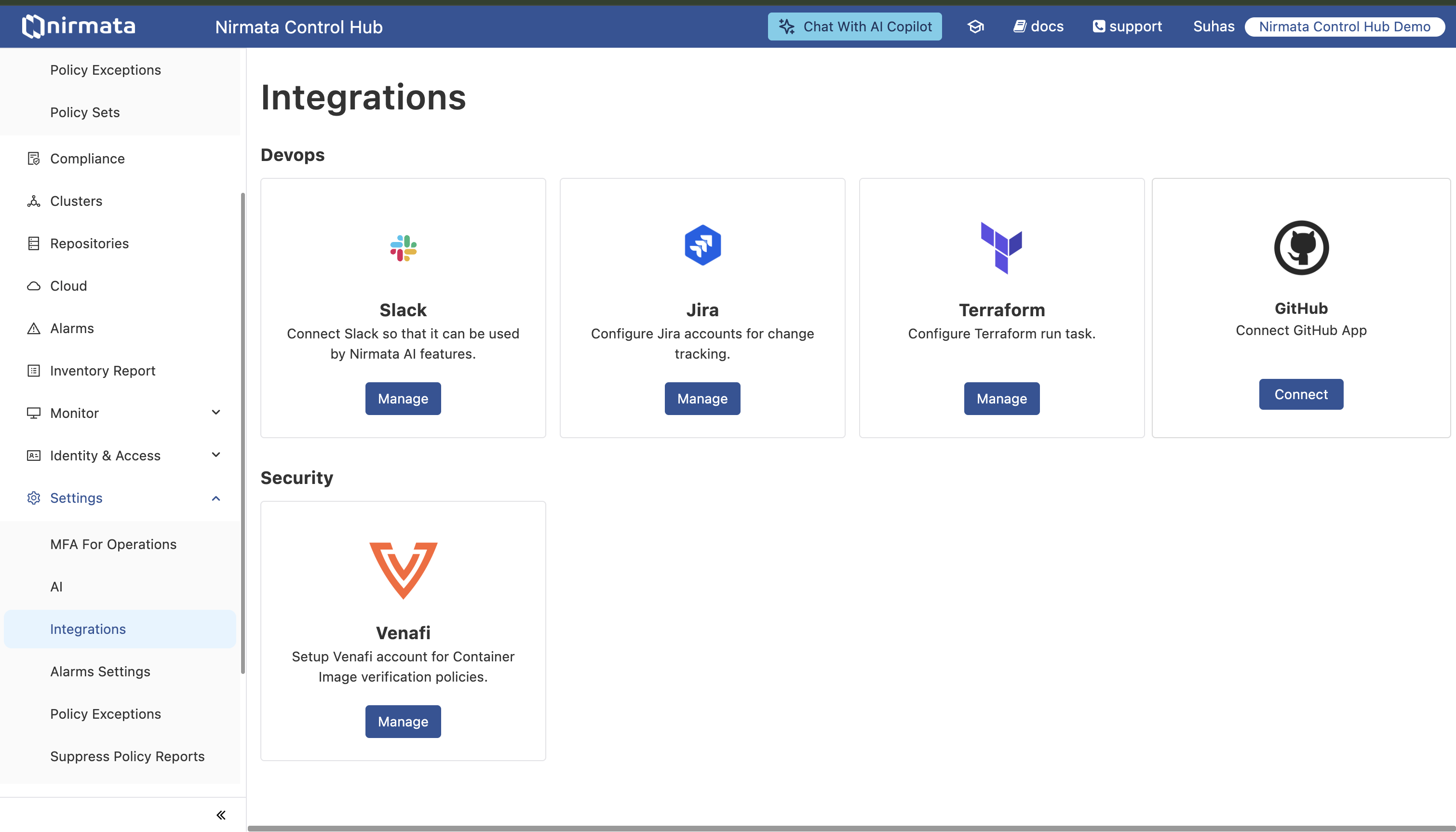
Step 2: Connect GitHub App
- Click the Connect button on the GitHub card
- You will be redirected to GitHub’s authorization page
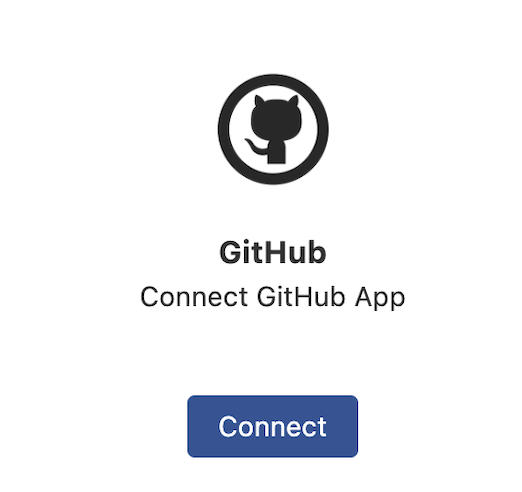
Step 3: Install Nirmata GitHub App
On the GitHub authorization page, you’ll see:
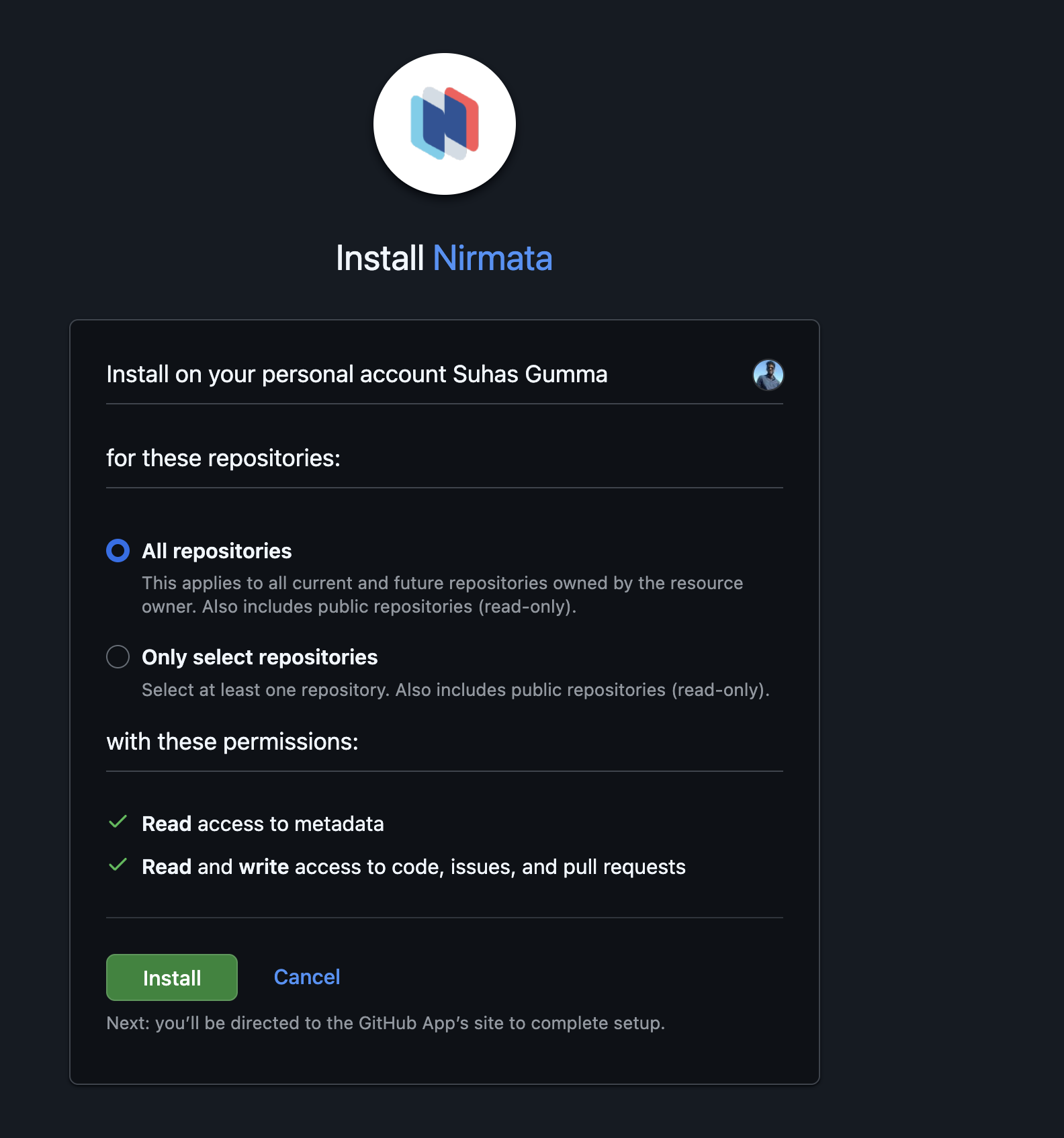
Select Account: Choose the GitHub account or organization where you want to install the app
- You’ll see your personal account and any organizations you have admin access to
Select Repositories: Choose which repositories Nirmata can access:
- All repositories: Grant access to all current and future repositories (recommended for full GitOps workflows)
- Only select repositories: Choose specific repositories for more granular control
Review Permissions: The Nirmata GitHub App requests the following permissions:
- ✅ Read access to metadata: Required by GitHub (mandatory)
- ✅ Read and write access to code, issues, and pull requests: Enables Nirmata to:
- Create branches and commits
- Open pull requests for policy remediations
- Create and manage issues
- Read repository contents
Click Install to authorize the connection
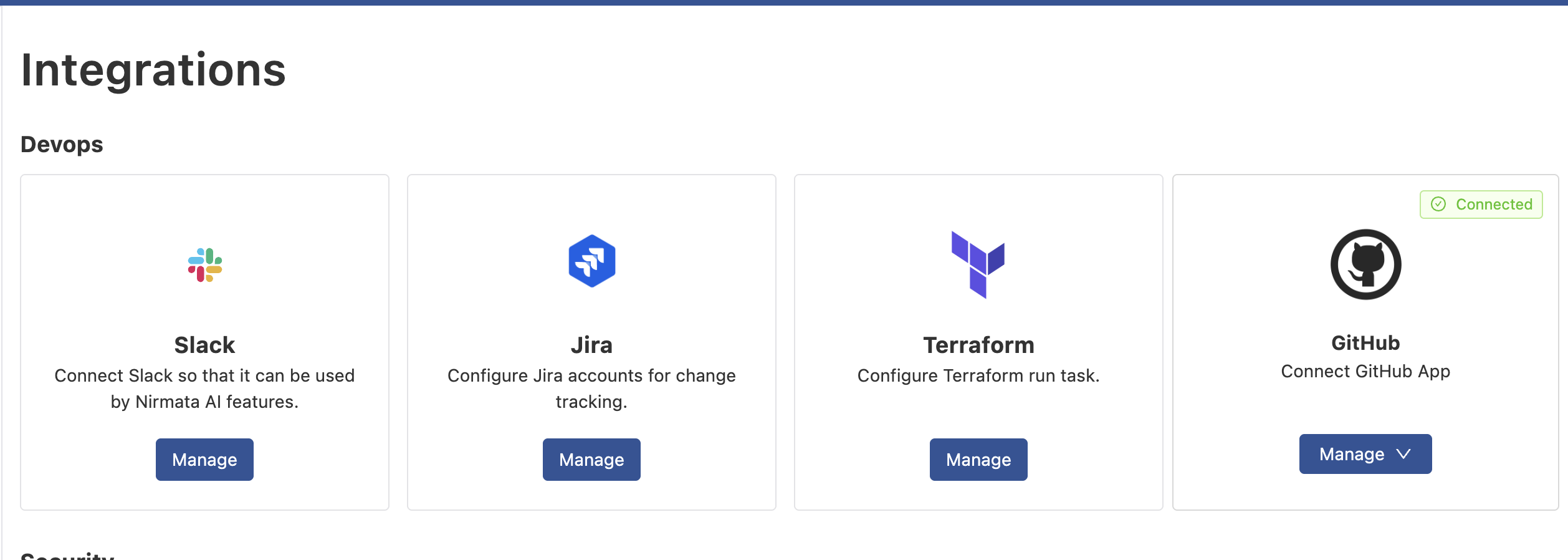
Step 4: Complete Setup
- After clicking Install, you’ll be redirected back to Nirmata Control Hub
- The GitHub integration will now show as Connected
- You can now use this integration across all Nirmata features that require GitHub access
GitHub App Permissions Explained
The Nirmata GitHub App requests the following permissions to enable GitOps workflows:
Repository Permissions
| Permission | Access Level | Purpose |
|---|---|---|
| Metadata | Read | Required by GitHub (mandatory for all apps) |
| Contents | Read & Write | Create and modify files, branches, and commits |
| Pull Requests | Read & Write | Create, update, and merge pull requests |
| Issues | Read & Write | Create and manage issues for tracking |
What Nirmata Can Do
With these permissions, Nirmata can:
- ✅ Read repository contents and metadata
- ✅ Create branches for policy fixes
- ✅ Commit changes to branches
- ✅ Open pull requests with automated fixes
- ✅ Add comments to pull requests
- ✅ Create issues for violations or notifications
- ✅ Read and respond to PR comments
What Nirmata Cannot Do
The app cannot:
- ❌ Delete repositories
- ❌ Modify repository settings
- ❌ Change collaborator permissions
- ❌ Force push or delete branches (unless branch protection allows)
- ❌ Merge PRs without proper approvals (if branch protection is enabled)
- ❌ Access repositories not explicitly granted during installation
Managing GitHub App Integration
Viewing Connected Repositories
After installation, you can view and manage the connected repositories:
- Navigate to Settings → Integrations
- Click Manage on the GitHub card
- You’ll see the list of connected repositories and installation details
Modifying Repository Access
To add or remove repository access:
- Navigate to Settings → Integrations
- Click Manage on the GitHub card
- Click Configure or go directly to your GitHub settings
- In GitHub, navigate to Settings → Applications → Installed GitHub Apps
- Find Nirmata and click Configure
- Modify repository access as needed
- Click Save
Disconnecting GitHub App
To remove the GitHub App integration:
- Navigate to Settings → Integrations
- Click Manage on the GitHub card
- Click Disconnect or Remove
- Confirm the removal
Alternatively, you can uninstall directly from GitHub:
- Go to your GitHub organization Settings → Applications → Installed GitHub Apps
- Find Nirmata and click Configure
- Scroll down and click Uninstall
Using GitHub App with Nirmata Features
Once the GitHub App is connected, it can be used across various Nirmata features:
AI Agents (Remediator Agent)
The Remediator Agent uses the GitHub App to create pull requests with policy fixes:
apiVersion: serviceagents.nirmata.io/v1alpha1
kind: ToolConfig
metadata:
  name: nirmata-github-tool
  namespace: nirmata
spec:
  type: github
  credentials:
    method: nirmata-app  # Uses GitHub App configured in NCH
  defaults:
    git:
      pullRequests:
        branchPrefix: "remediation-"
        titleTemplate: "remediator: Fix policy violations in %s"
        commitMessageTemplate: "Auto-fix: Remediate policy violations in %s"
        systemLabels:
          - "branch"
          - "clusterName"
          - "appName"
          - "namespace"
        customLabels:
          - "security"
          - "compliance"
Prerequisites:
- GitHub App installed and connected in NCH
SERVICE_ACCOUNT_TOKENorAPI_TOKENenvironment variable configured in your cluster- No additional secrets required
Example: Remediator with GitHub App
apiVersion: serviceagents.nirmata.io/v1alpha1
kind: Remediator
metadata:
  name: remediator-sample
  namespace: nirmata
spec:
  environment:
    type: argoHub

  target:
    argoHubTarget:
      argoAppSelector:
        allApps: true

  remediation:
    llmConfigRef:
      name: remediator-agent-llm
      namespace: nirmata
    gitCredentials:
      name: nirmata-github-tool  # Reference to your ToolConfig
      namespace: nirmata
    triggers:
      - schedule:
          crontab: "0 */6 * * *"
    actions:
      - type: CreatePR
        toolRef:
          name: nirmata-github-tool  # Reference to your ToolConfig
          namespace: nirmata
Troubleshooting
Cannot Connect to GitHub
Problem: The “Connect” button doesn’t redirect to GitHub or shows an error
Solutions:
- Ensure you’re logged into GitHub in the same browser
- Check that pop-ups are not blocked in your browser
- Verify you have admin access to the GitHub organization where you want to install
- Clear browser cache and cookies, then try again
Missing Repository Access
Problem: Nirmata cannot access a specific repository
Solutions:
- Verify the repository is included in the GitHub App installation:
- Go to GitHub → Settings → Applications → Installed GitHub Apps
- Click Configure next to Nirmata
- Check if the repository is listed or “All repositories” is selected
- If missing, add the repository:
- Click Configure next to Nirmata
- Select the repository from the dropdown
- Click Save
Pull Requests Not Being Created
Problem: AI agents or GitOps workflows can’t create pull requests
Solutions:
- Verify the GitHub App is installed on the target repository (see “Missing Repository Access” above)
- Check that the repository is not archived or read-only
- Ensure branch protection rules don’t prevent the app from pushing
- Review the application logs for detailed error messages:
kubectl logs -n nirmata -l app.kubernetes.io/name=remediator-agent --tail=100 - Verify your
SERVICE_ACCOUNT_TOKENorAPI_TOKENis correctly configured
Frequently Asked Questions
Do I need to create my own GitHub App?
No. Nirmata provides a ready-to-use GitHub App that you can install directly from the Nirmata Control Hub interface. Simply click “Connect” and authorize the app.
Can I use the GitHub App with multiple organizations?
Yes. You can install the Nirmata GitHub App on multiple GitHub organizations. Simply repeat the connection process for each organization you want to integrate.
What happens if I disconnect the GitHub App?
Disconnecting will:
- Stop all automated operations (PRs, commits, etc.)
- Prevent AI agents from creating pull requests
- Disable GitOps sync operations
- Close the integration in Nirmata Control Hub
Your existing pull requests and issues will remain in GitHub.
Can I limit which repositories Nirmata accesses?
Yes. During installation, you can choose “Only select repositories” and pick specific repositories. You can modify this selection anytime from GitHub’s app settings.
Related Documentation
- Remediator Agent Overview - Learn about AI-powered policy remediation
- GitHub Authentication Guide - Detailed guide for using GitHub with AI agents
- Integration Settings - All available integrations
- GitOps Workflows - Using Git-based workflows in Nirmata
Support
Need help with GitHub App integration?
- Nirmata Support: support@nirmata.com
- Documentation: https://docs.nirmata.io
- GitHub Apps Help: https://docs.github.com/en/apps
- Community Forum: https://community.nirmata.io (if available)