---
title: "Policy Sets"
diataxis: how-to
applies_to:
product: "nirmata-control-hub"
audience: ["platform-engineer","devsecops"]
last_updated: 2026-04-16
url: https://docs.nirmata.io/docs/control-hub/policy-hub/policy-sets/
---
Policy Sets are a collection of individual policies that allow a set of configuration standards to be applied to various objects within the Kubernetes clusters.
## Creating a Policy Set
To create a new Policy Set:
1. Go to **Policies**>**Policy Sets**. The Policy Sets page displays the existing policy sets along with their details.
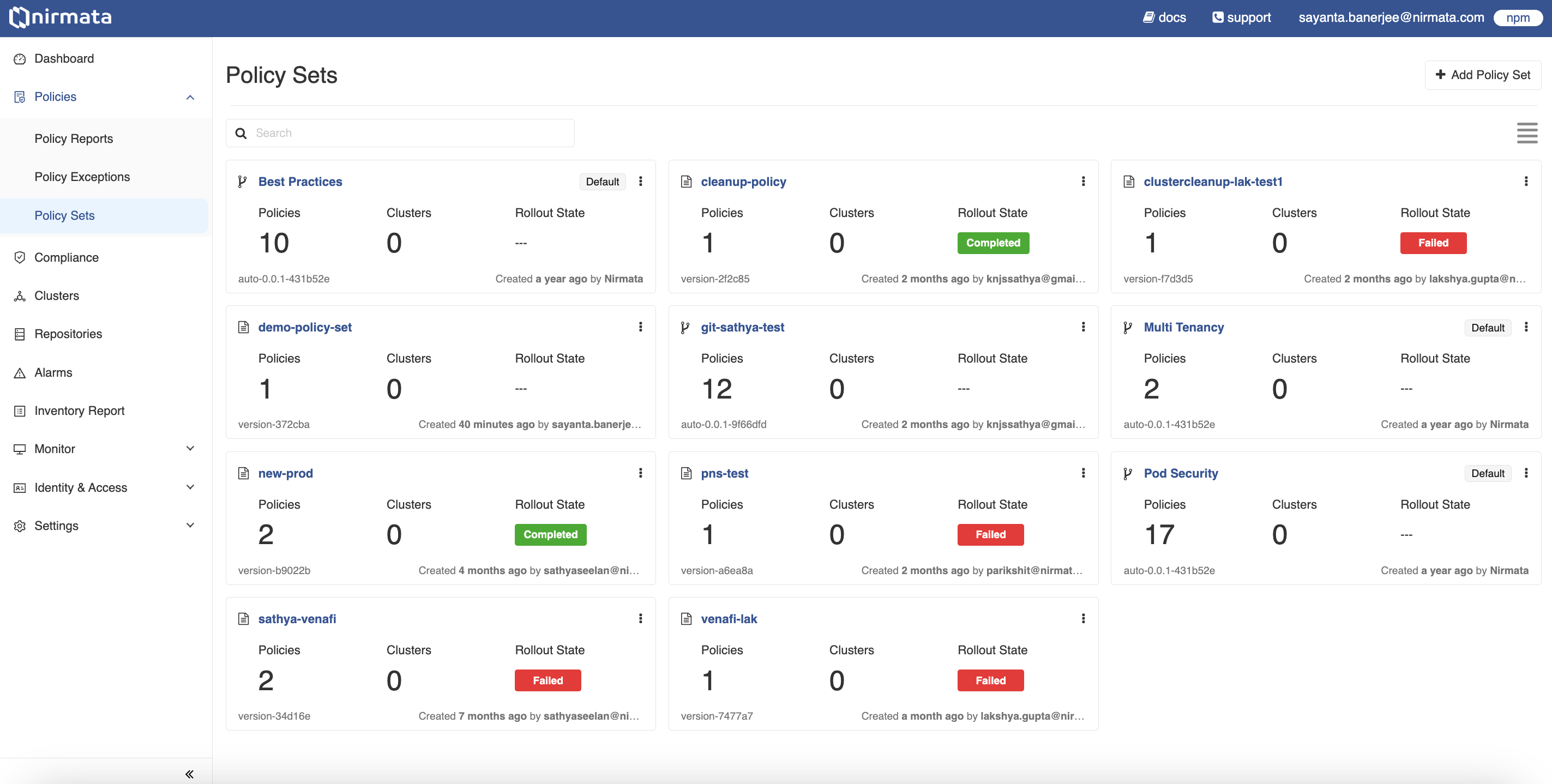
2. Click on the `Add Policy Set` button located on the top right-hand corner of the page.
3. Nirmata provides curated policy sets for Pod Security Standards and RBAC Best Practices. Nirmata manages these policies and upgrades them as necessary. The policies can be found in the [kyverno-policies](https://github.com/nirmata/kyverno-policies) repository.
4. It is not mandatory to use Nirmata's curated policy sets. Create a custom policy set by clicking on **Add Custom Policy Set**. This option provides more control over the lifecycle of the underlying policies.
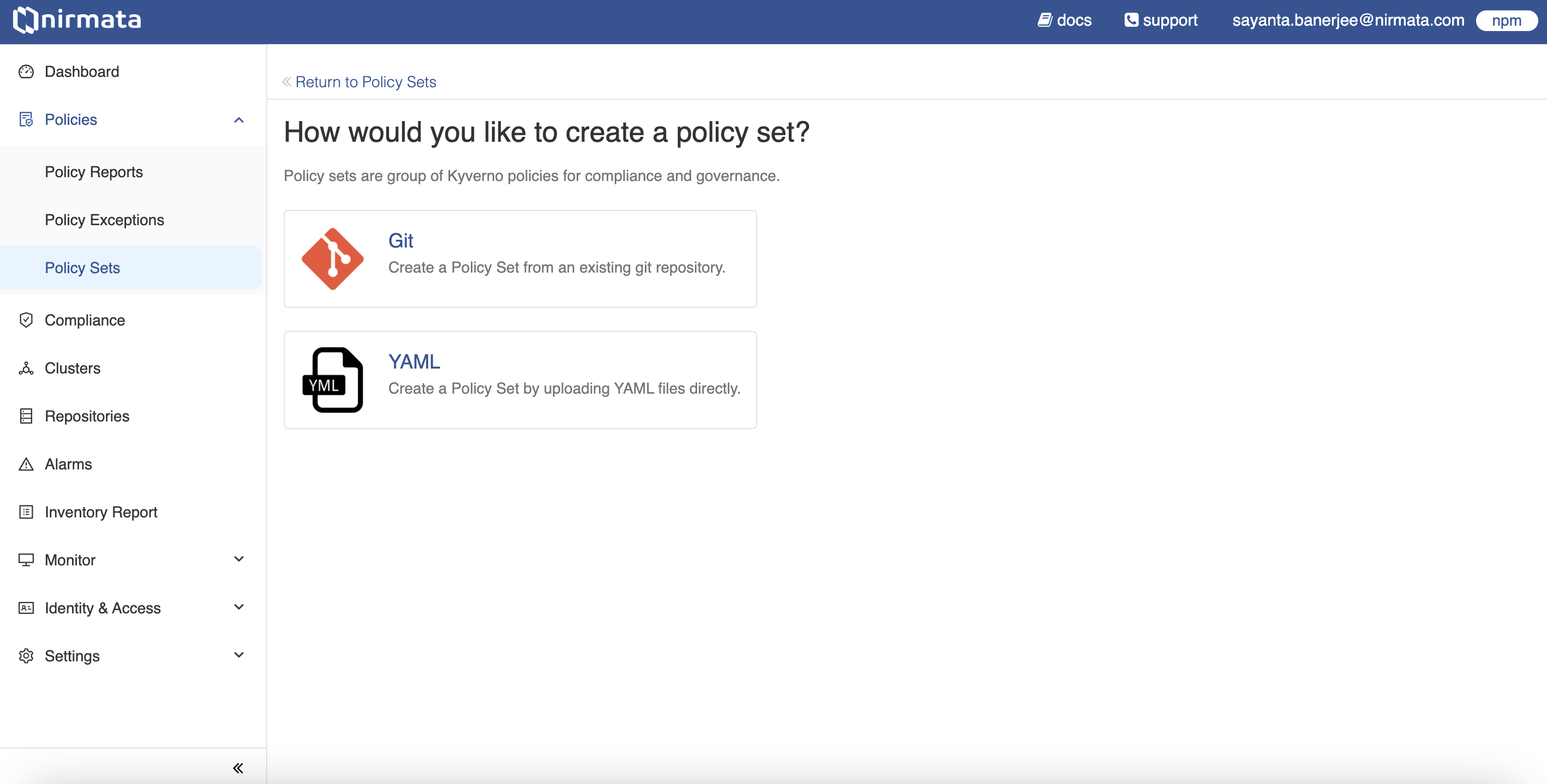
The page displays two options to create a policy set:
a. **Git (recommended)** - Select this option to create a Policy Set from an existing Git repository.
b. **YAML** - Select this option to create a Policy Set by uploading YAML files directly.
### Creating a Git Policy Set (Recommended)
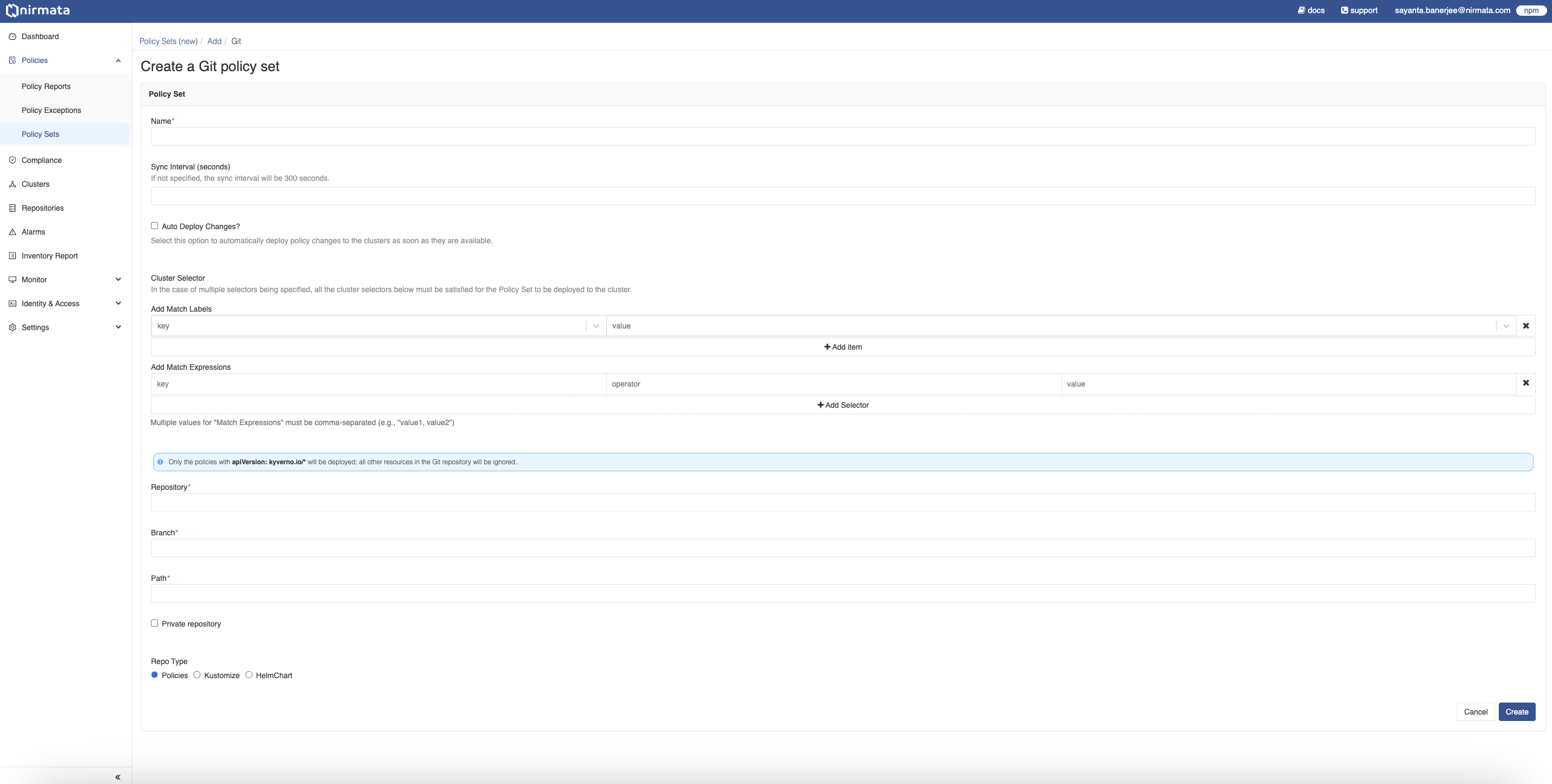
To create a Git Policy Set, click on the **Git** option. The Policy Set form is displayed. In that form:
1. Provide a unique name and description for the Policy Set.
2. Specify the time for sync interval in seconds under the `Sync Interval (seconds)` field. If not specified, the default sync interval will be 300 seconds.
3. Select the `Default Policy Set` checkbox if you want to make this policy set as a default whenever future clusters are onboarded.
3. Select `Auto Deploy Changes` checkbox if you want the changes in Git to automatically sync to the clusters.
4. Specify any cluster selectors under the `Cluster Selector` field by adding `Match Labels` and `Match Expressions` in the form of key-value pairs.
a. Add Match Labels by entering the values within the `key` and `value` sections.
b. Click on `Add item` to add multiple Match Labels.
c. Add Match Expressions by entering the values within the `key` and `value` sections and specifying the operator within the `operator` section from the drop-down list. The available `operator` options are *In*, *Not In*, *Exists*, and *Does Not Exist*. Multiple values for `Match Expressions` must be comma-separated (e.g., "value1, value2").
d. Click on `Add Selector` to add multiple Match Expressions.
>Note: In the case of multiple selectors being specified, all the cluster selectors must be satisfied for the Policy Set to be deployed to the cluster.
5. After specifying the cluster selectors, fill out the Git Repository, Branch, and Path details to fetch the policies.
8. If the repository is private, click on the `Private repository` checkbox. The `K8s secrets` form will be displayed. In that form:
a. Enter the name of the `namespace`, `secret`, and `token key`.
>NOTE: Create a Kubernetes secret in the provided namespace containing Git credentials. This allows the Operator to connect to your private Git repo to fetch the policies.
9. After that, determine the repository type by clicking on the radio button beside `Policies`, `Kustomize`, and `HelmChart`.
a. If `HelmChart` is selected, an additional form will be displayed to specify the `Helm Customizations` in the form of key-value pair.
b. Enter the values for customization within the `key` and `value` section.
c. Click on `Add item` to add multiple customizations.
11. Finally, click **Create**. Upon clicking, the Policy Set gets created and the **Upload Policies** section opens.
### Creating a YAML Policy Set
To create a YAML Policy Set:
1. Click on the **YAML** option. The Policy Set form is displayed.
2. In the **Name** field, enter a unique name for the Policy Set.
3. Click **Create**. Upon clicking, the Policy Set gets created and the **Upload Policies** section opens.
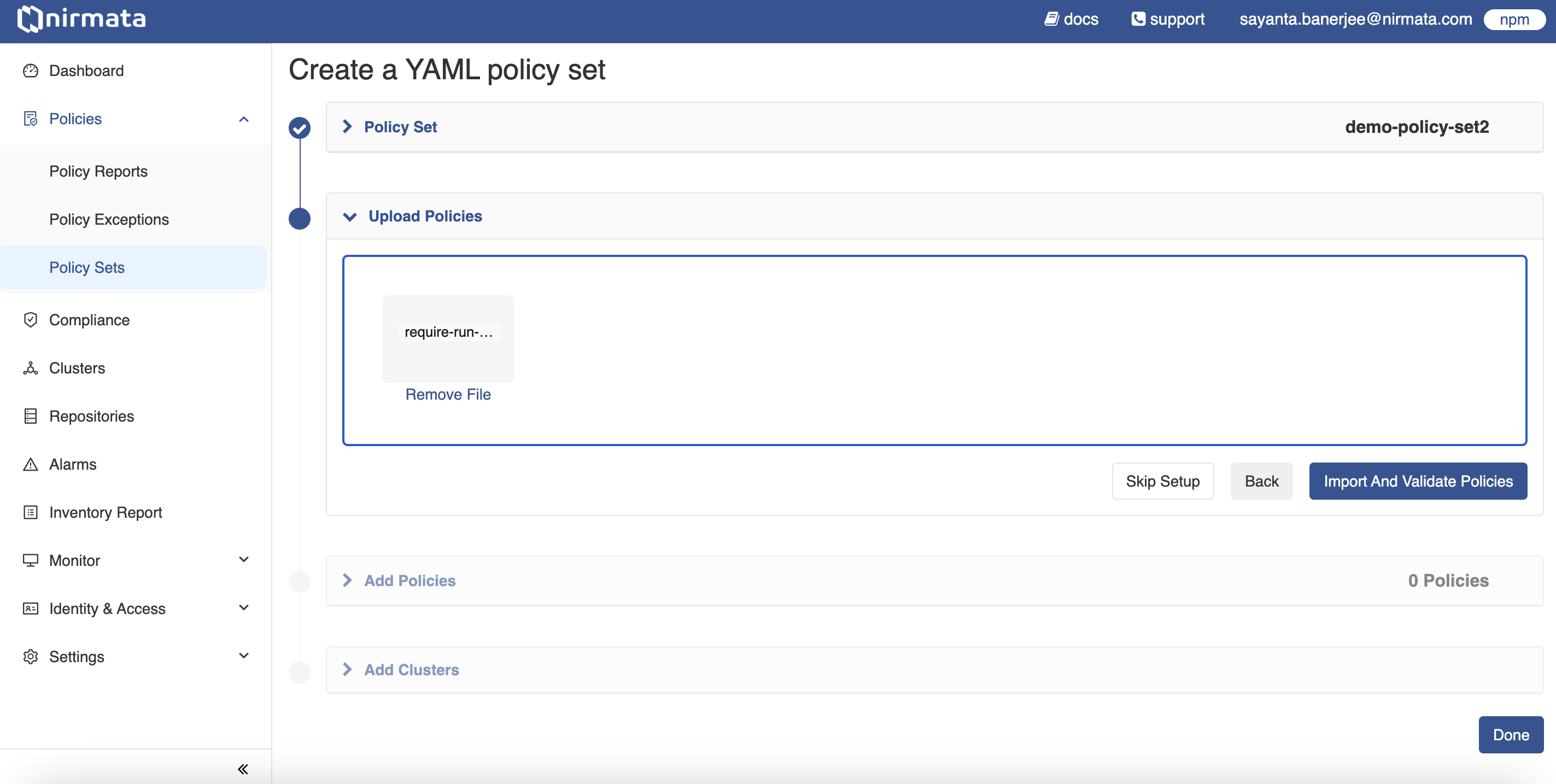
4. Next, click on the section to upload the YAML policy.
5. After that, click on the **Import and Validate Policies** button. This will open the **Add Policies** section, where the policy added is validated and mentioned with a check mark if it passes the validation.
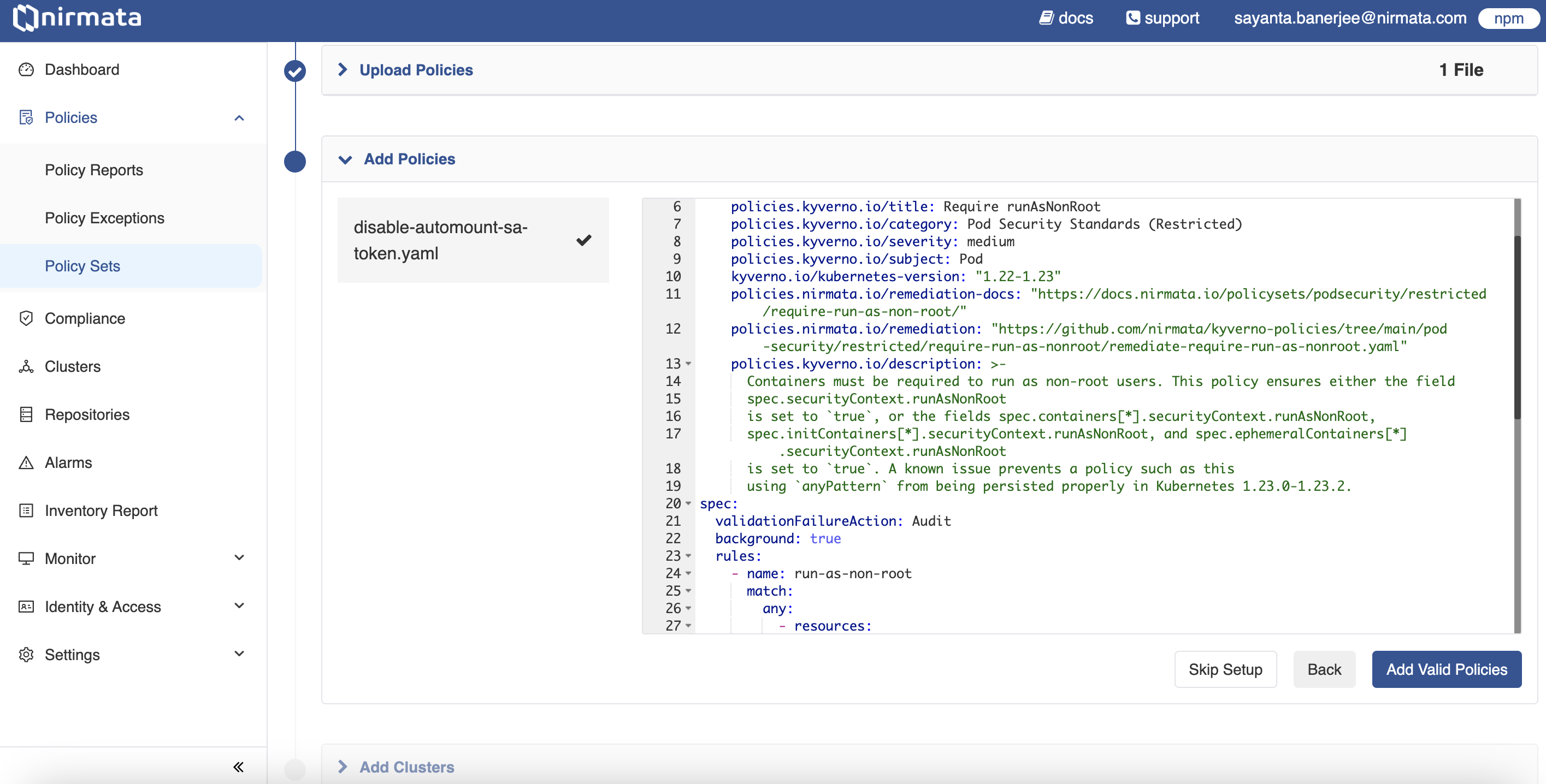
6. Click on the **Add Valid Policies** button. The **Add Clusters** section is displayed with the list of available clusters.
7. Choose the cluster/s by clicking the checkbox on which the Policy Set created needs to be deployed.
8. Afterwards, click on the **Add Clusters** button. A success message is displayed.
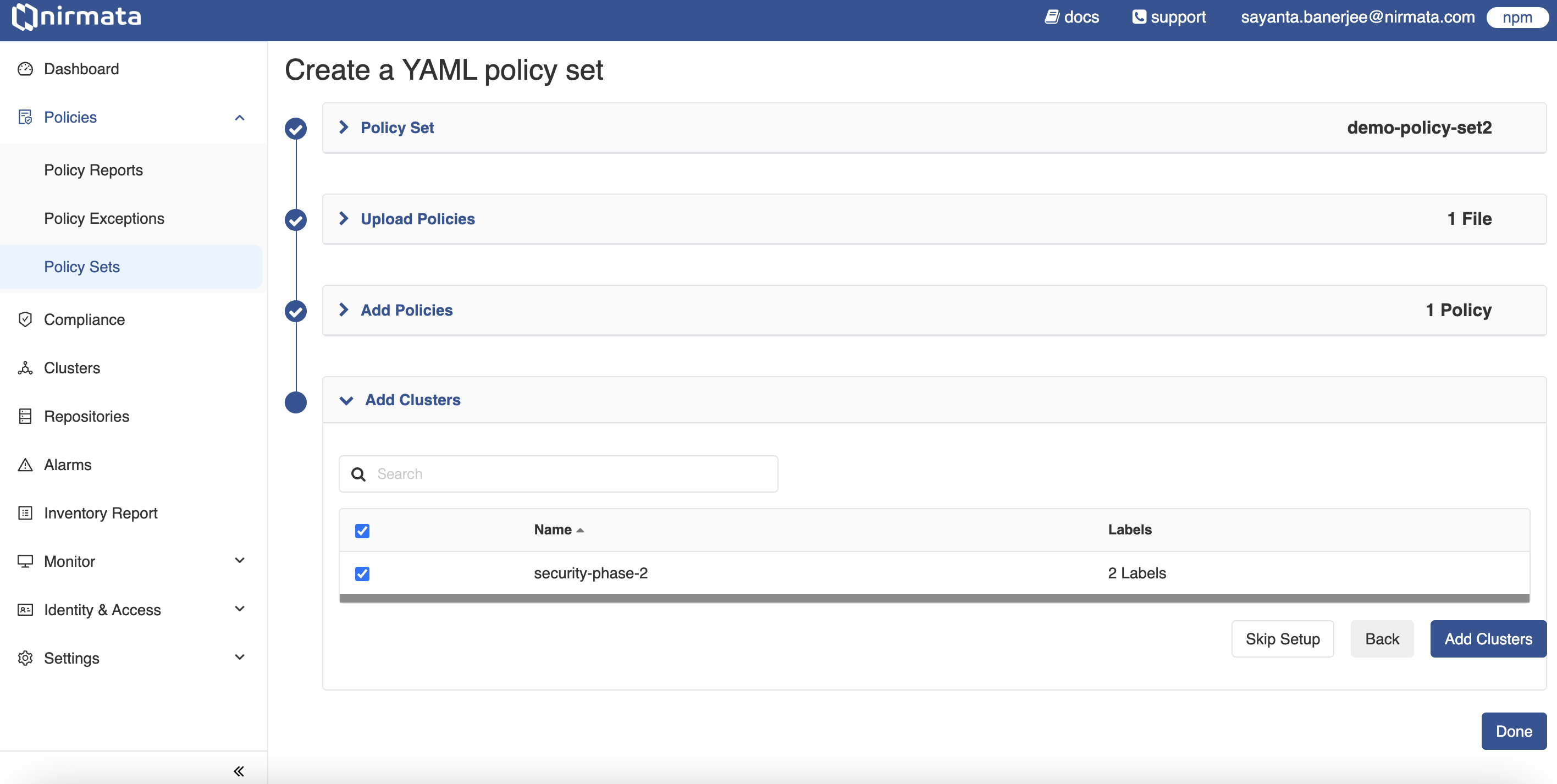
9. Finally, click **Done**.
## Viewing a Policy Set
To view a newly created Policy Set:
1. Go to **Policies**>**Policy Sets**. The Policy Sets page displays the existing policy sets along with their details.
2. Click on the Policy Set card that is newly created. The created Policy Set page opens.
3. The Policy Set page contains information on the current policy version, the number of clusters subscribed with the policy set, the number of policies present in the policy set, and the last rollout status.
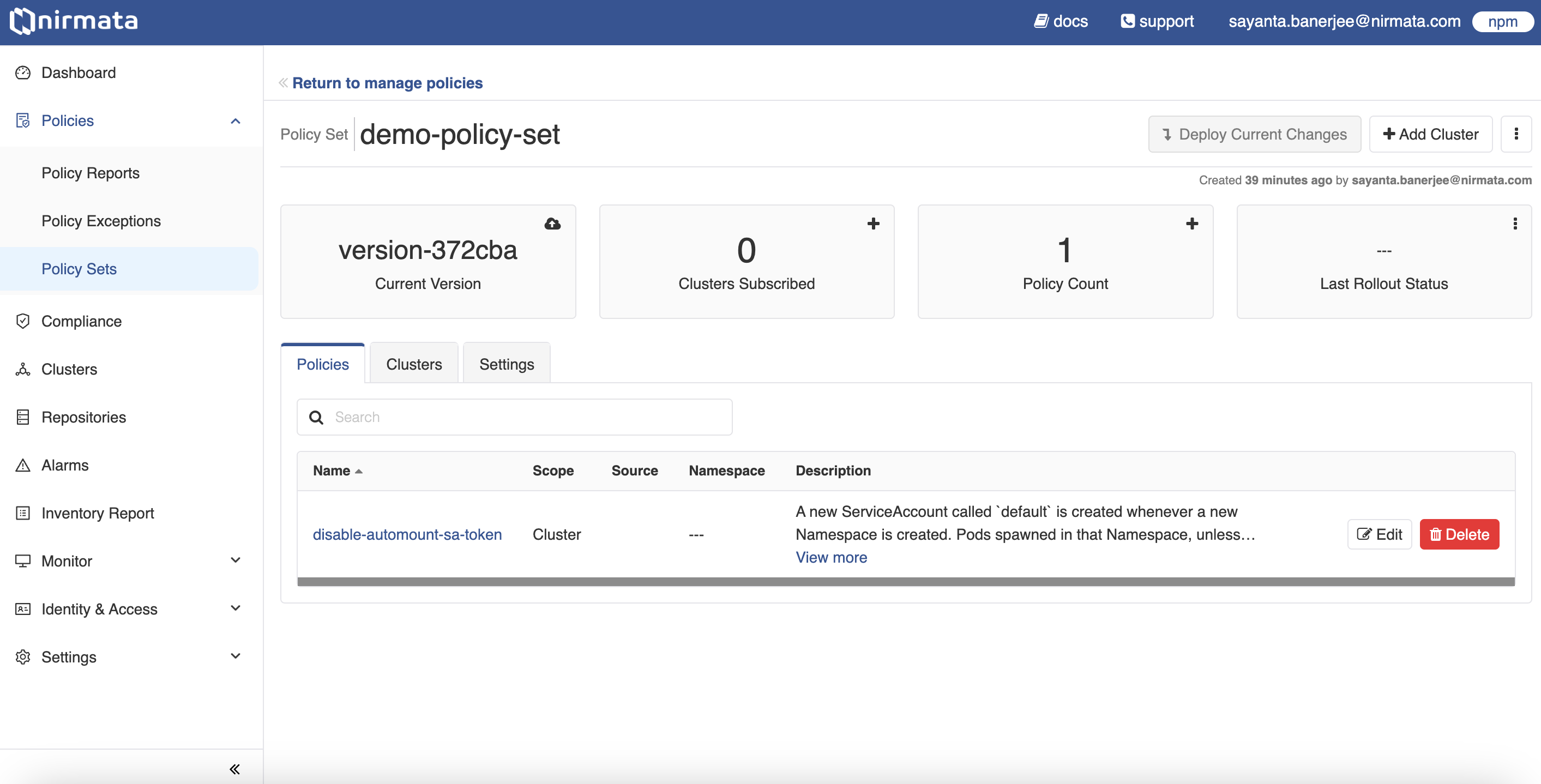
4. More clusters and policies can be added by clicking on the `+` button available within the cards. Alternatively, clicking on the `Add Cluster` button on the top right corner will do the same for adding clusters in the Policy Set.
5. The *Policies* tab opens by default. It contains information of the policies present in the Policy Set, including the *Name* of the policy, the *Source* of the policy, the *Scope* defined, any associated *Namespace*, and the *Description* of the policy.
6. Click on the *Clusters* and *Settings* tab to know more information about the subscribed clusters with the Policy Set and the settings of the overall Policy Set.
## Deploying Policy Set to Clusters
In addition to specifying matching cluster labels and expressions for the policy sets, you can also directly choose the clusters to deploy policy sets.
1. Go to the policy set that you want to deploy.
2. Click on `Add Cluster` and select one or more clusters from the list.
## Verifying Policy Set Deployment
1. Go to the policy set and click on the `Deployed Policies` tab. All the deployed policies along with their Status will be shown.
2. Alternatively, if you have access to the kubeconfig of the cluster, use `kubectl` to view policies on the command line.
```bash
kubectl get policyset -A
kubectl get cpol
```text