---
title: "Policy Exceptions Management"
description: "Contain steps to raise policy exceptions"
diataxis: how-to
applies_to:
product: "nirmata-control-hub"
audience: ["platform-engineer","devsecops"]
last_updated: 2026-04-16
url: https://docs.nirmata.io/docs/control-hub/policy-hub/policy-exceptions/
---
Policy Exceptions are temporary deviations that are required when following policy practices might not be possible because they can hinder operational needs.
## Policy Exception workflow
Every policy exception request is sent to an admin for review. The admin can either accept or reject the request. If the request gets accepted, the PolicyException resource gets deployed and the user who requested the exception gets notified via email.
## Configuring Policy Exception Settings
A Nirmata Admin User can manage the approval and review settings of Policy Exception Requests as per requirements.
To manage the Policy Exception settings:
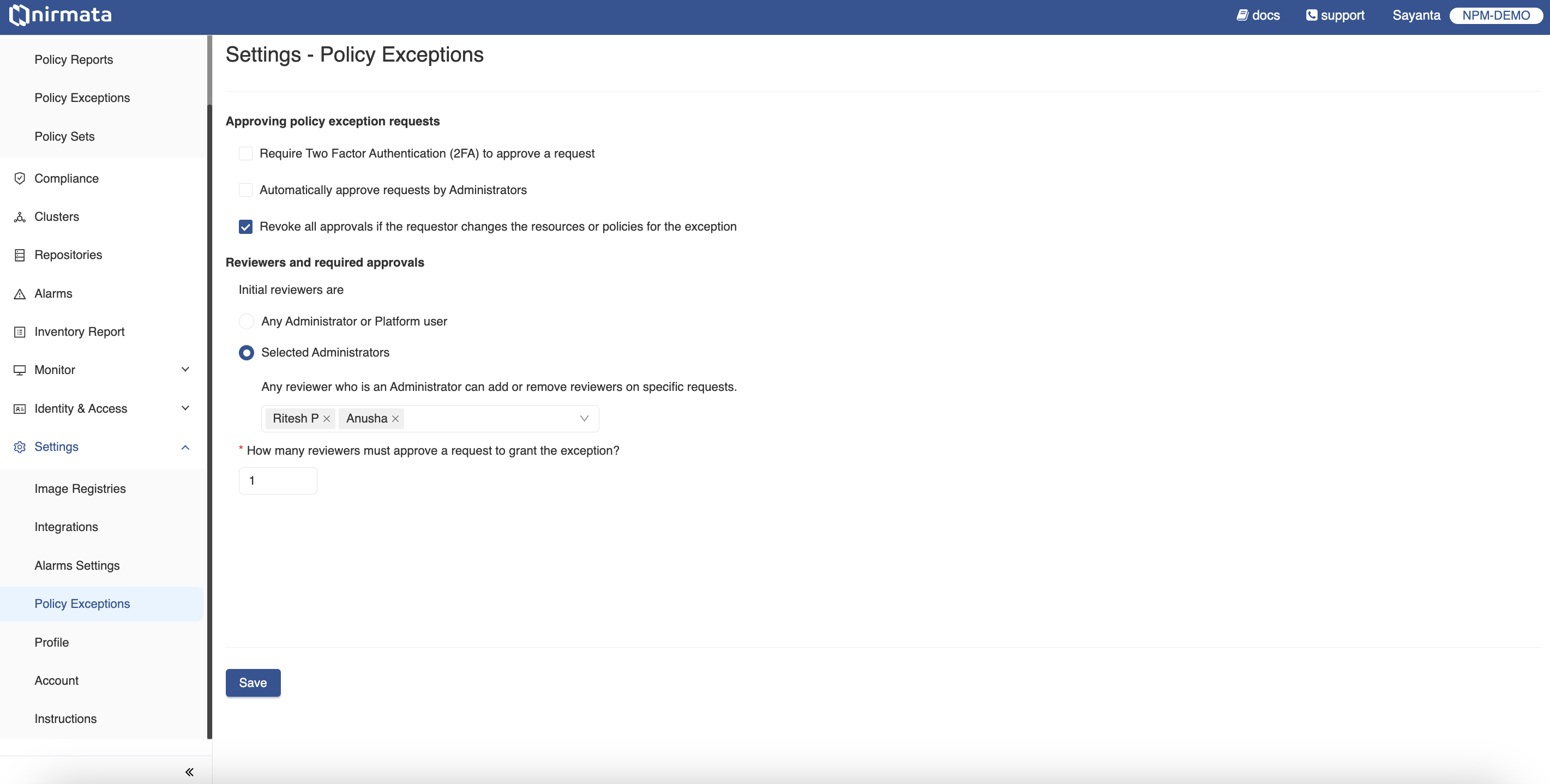
1. Go to **Settings** -> **Policy Exceptions**.
2. Manage the approval of Policy Exception Requests by checking the boxes beside the available options.
a. Checking the `Require Two Factor Authentication (2FA) to approve a request` option will require setting up two-factor authentication and compel users to complete the two-factor authentication to approve an exception request.
b. Checking the `Automatically approve requests by Administrators` option will automatically approve policy exception requests that are raised by administrators without going through the approval process.
c. Checking the `Revoke all approvals if the requestor changes the resources or policies for the exception` option will revoke any previous approvals given to an exception request if the user changes any of the target selectors like cluster, violations, or namespaces for the request.
3. Select the intital reviewers for the Policy Exception Requests under the `Reviewers and required approvals` section by choosing any of the available options.
a. Choosing the `Any Administrator or Platform user` option will allow any Admin or Platform user to review the raised exception request.
b. Choosing the `Selected Administrators` option will allow only the selected Admin users for the review of the requests. Multiple Admin users can be selected from the available dropdown. An Admin user can also add or remove reviewers on specific requests.
4. Define the number of reviewers required to approve a Policy Exception Request for the exception to be granted by writing the number in the given text box.
5. Click on the **Save** button to save the changes.
## Requesting a Policy Exception
Policy Exception Request can be raised directly from the **Policy Exceptions** page or from the **Policy Reports** page of a particular namespace of a cluster.
>Note: Existing clusters in Nirmata Control Hub need to provide extra permissions for Policy Exception expiry feature to work. The extra permission is for the `kverno-cleanup-controller` to delete policy exceptions from the cluster. Check out the `nirmata:policyexception-manager` ClusterRoleBinding in [Nirmata Kube Controller](https://docs.nirmata.io/docs/control-hub/cluster/nirmata-kube-controller/#clusterrolebindings) to see the changes.
To raise a **Policy Exception Request**:
1. Go to **Policy** -> **Policy Exceptions**. The page displays the already created Policy Exception Requests that are either approved, denied, or requires approval.
2. Click on the `Request Policy Exception` button located on the right hand top corner of the screen. Fill out the Policy Exception Request form with all the details.
3. Give a brief description on why the exception is required.
4. Select the start date for the exception request to be applied according to the needs or opt for the option `Immediately after approval` to apply the exception immediately after approval from the reviewers.
5. Select the time duration for the policy excetion. The available options are `1 day`, `1 week`, `1 month`, or `Never Expires`.
>NOTE: Exceptions should be short-lived. Thus, it is not recommended to use `Never Expires`.
6. Exceptions can be applied for cluster resources and/or repository files.
a. If exceptions should be applied to cluster resources, select all the namespaces and clusters that require the exception.
b. If exceptions should be applied to files in the Git repository, select all the repositories and branches that require the exception.
9. Select the violations for which the policy exception will be applied.
a. If the policy exception is to be applied to all the available policy violations in the selected namespaces and repositories, select the `All Violations` option.
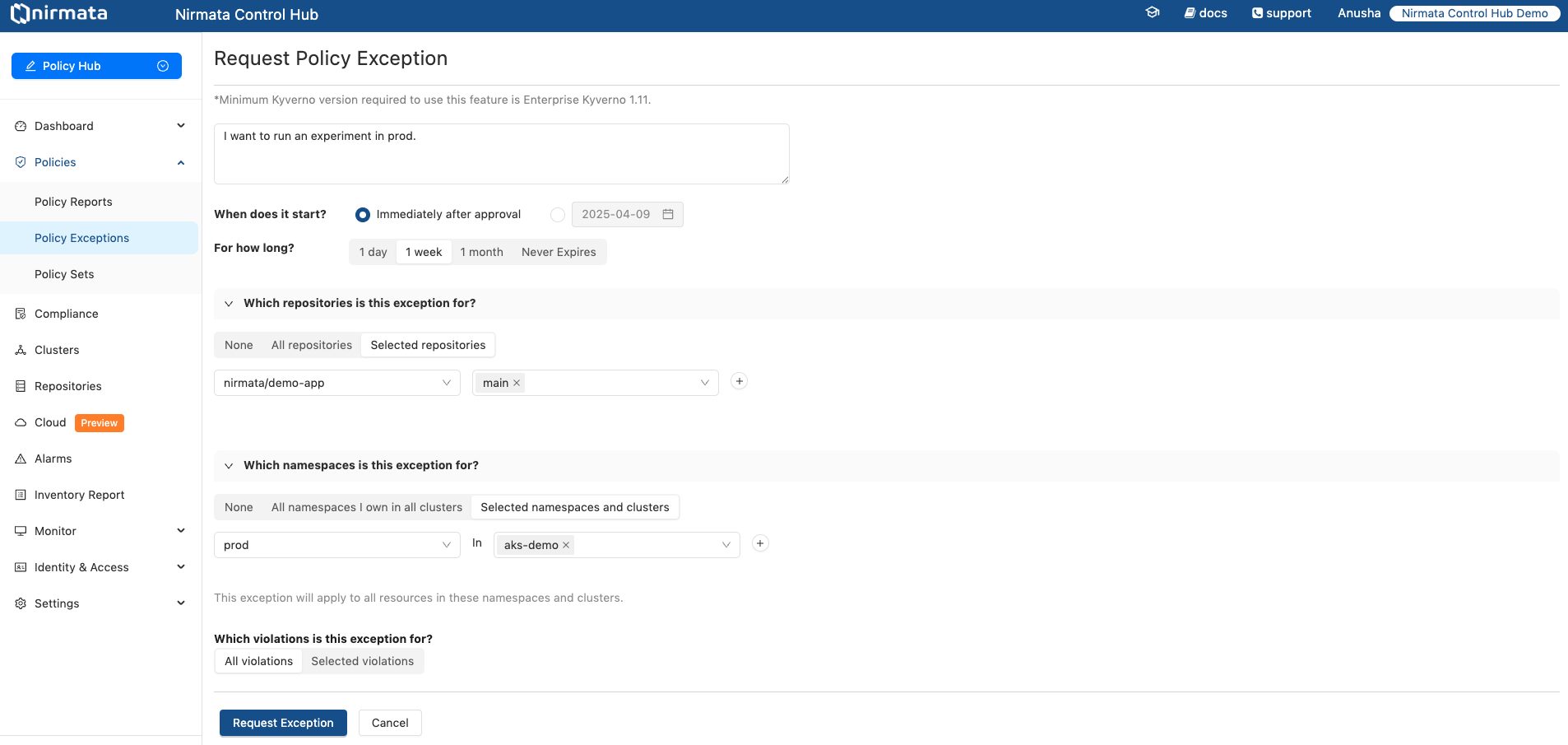
8. Click on the `Request Exception` button to raise the Policy Exception Request. It will send an alert to the admin for a review.
>Note: The Policy Exception Request can be raised in the same way through the Policy Reports page. For that, go to the **Policy Reports** page and view the available namespaces. Click on any of the namespaces that will require a Policy Exception, and raise a Policy exception request by clicking on the `Request Policy Exception` button.
## Reviewing a Policy Exception Request
To review the Policy Exception Requests:
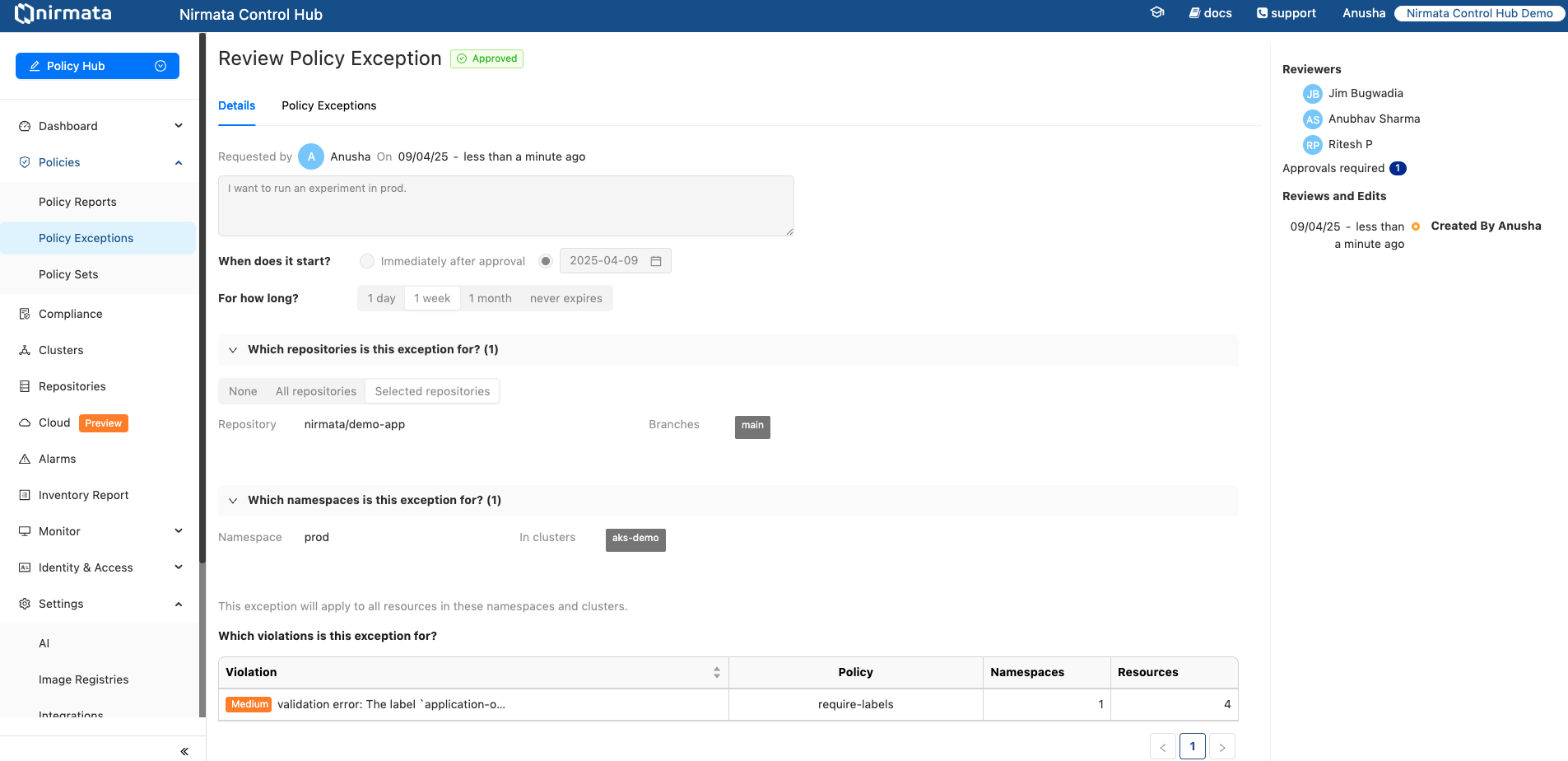
1. Go to **Policy** -> **Policy Exceptions**. The page displays the list of already created Policy Excepttion Requests.
2. Click on the Policy Exception Request name to view the created Policy Exception Request in detail. The page will also contain information on the activity of the reviewer under the **Reviews and Edits** section located at the right hand side of the screen.
## Viewing Policy Exceptions
If a Policy Exception Request is approved, Nirmata Control Hub deploys the corresponding `PolicyException` resource to the target environments. These can be viewed under `Policy Exceptions -> Deployed Policy Exceptions` tab along with their deployment status and expiry details.
>NOTE: For expiry of policy exceptions, Nirmata Control Hub uses the Cleanup Controller in Kyverno. This controller needs permissions to perform the cleanup action. Make sure the ClusterRoleBinding nirmata:policyexception-manager is present in the cluster. Review all nirmata resources [here](/docs/control-hub/cluster/nirmata-kube-controller/).
---
## GitOps Integration
Policy exceptions can be managed and deployed using GitOps, similar to any other resource. Follow Nirmata Control Hub's request and approval workflow for creating and approving exceptions. The actual deployment of these exceptions will be handled through GitOps processes.
#### Managing Deployment Settings
An admin user can manage the deployment settings for Policy Exception Requests.
1. Go to **Settings** -> **Policy Exceptions** and click on the `Deployment` tab. The Settings page for Policy Exceptions deployment opens with `Automatic deployment` set as the default.
2. Click on the radio button beside `GitOps deployment`.
3. Enter the Git repository URL under `Git repository for policy exceptions` to provide a path for mapping the available clusters to a repository branch.
4. Map the clusters that are onboarded in Nirmata Control Hub to a branch in the Git repository. To do so:
a. Under `Cluster Expression to Branch Mappings`, select `cluster.label` or `cluster.name` from the dropdown.
b. If `cluster.label` is selected, choose the label from the dropdown.
c. Select the operator type from the dropdown. The available options are `in`, `exists`, and `contains`.
d. Select the operator value from the dropdown or enter it manually, then enter the repository branch name.
e. If `cluster.name` is selected, choose the operator type from the dropdown. The available options are `in` and `contains`.
f. Select the operator value from the dropdown or enter it manually, then enter the repository branch name.
g. Click the `+` button to add more cluster mappings.
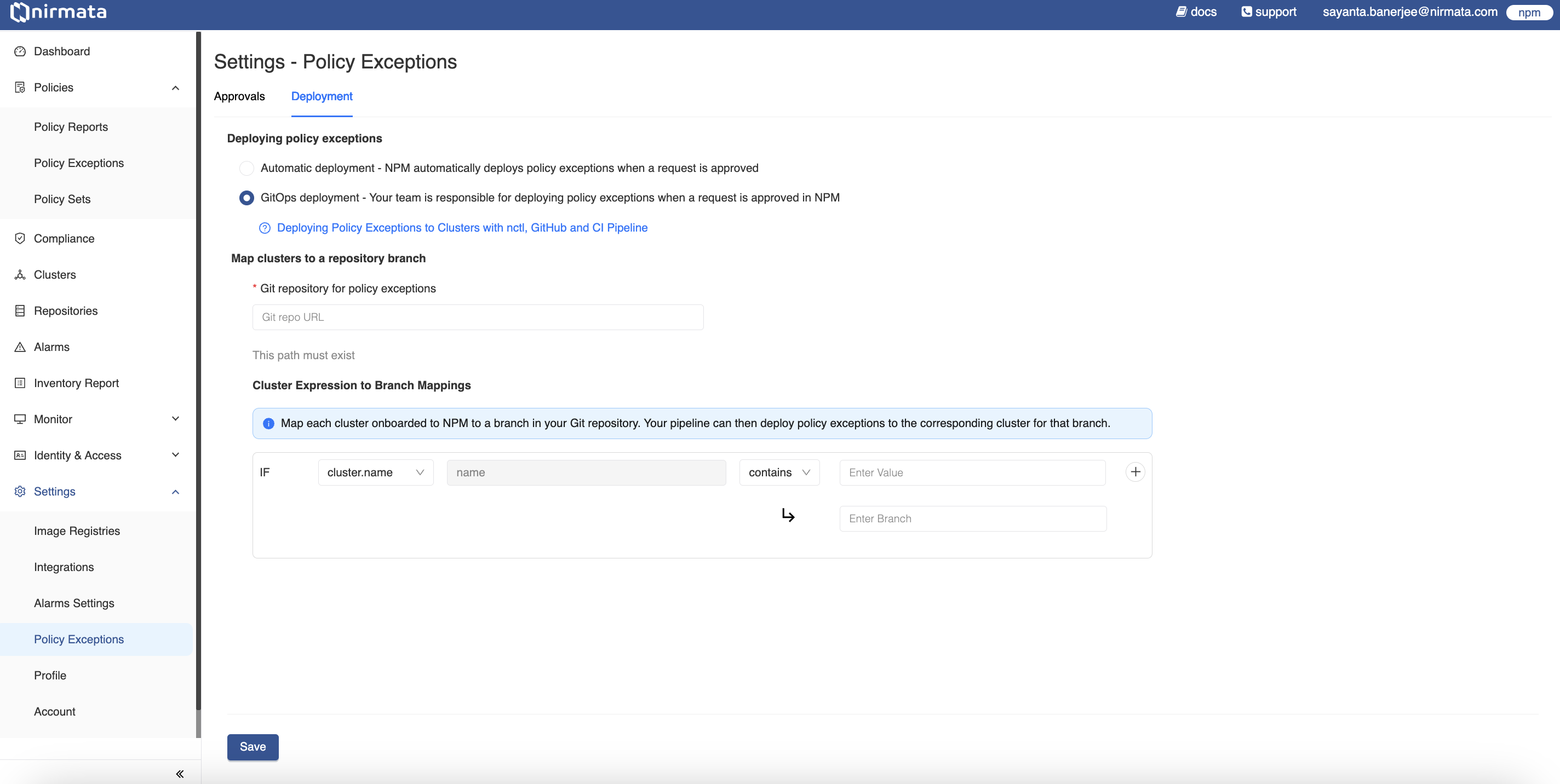
5. Finally, click **Save**.
### GitOps Deployment of Policy Exceptions in Action
`nctl` is required for creating Pull Requests for Policy Exception Requests. Learn more about installing nctl and its commands in the [official documentation](https://docs.nirmata.io/docs/nctl/getting-started/).
To deploy Policy Exceptions through GitOps:
1. Create a Policy Exception Request by following the steps [here](https://docs.nirmata.io/docs/control-hub/policy_exceptions/).
2. After the request is approved, a `Need to Deploy` message will appear under the **Deploy Status** section in Nirmata Control Hub.
3. In your local terminal, verify the created Policy Exception Request by executing:
```bash
nctl get policyexceptionrequest
```text
>NOTE: Login using the `nctl login npm` command to fetch policy exception requests from Nirmata Control Hub.
4. Now, create a pull request to deploy the Policy Exception by executing the following command:
This command will create PRs for all Policy Exception Requests that are in `Approved` state.
```bash
nctl create pull-request
```text
To create PR for a given Policy Exception Request, use the `--per-name` argument.
```bash
nctl create pull-request --per-name
```text
>NOTE: NCTL needs Git Personal Access Token (PAT) to be able to create pull requests on behalf of the user. Use the `nctl login github` command to set the Git login credentials.
>NOTE: The Git PAT should have write access to the repository. NCTL creates a temporary branch to commit the PolicyException YAML and then creates a PR to the relevant branch mapped in Nirmata Control Hub.
5. Once the PR is created, a team member can review and merge it into the repository. The Policy Exception will be deployed to the cluster according to your GitOps/pipeline workflow settings.
6. Verify the deployment by checking the Policy Exceptions in Nirmata Control Hub - you should see a `Create PR Created` message under the **Deploy Status** section.
7. When revoking a deployed Policy Exception, after revoking it from Nirmata Control Hub, create a PR using the same process to remove the PolicyException from the cluster.