---
title: "Automatic Report Scheduling"
diataxis: how-to
applies_to:
product: "nirmata-control-hub"
audience: ["platform-engineer","cluster-admin"]
last_updated: 2026-03-25
url: https://docs.nirmata.io/docs/control-hub/how-to/auto_report_scheduling/
---
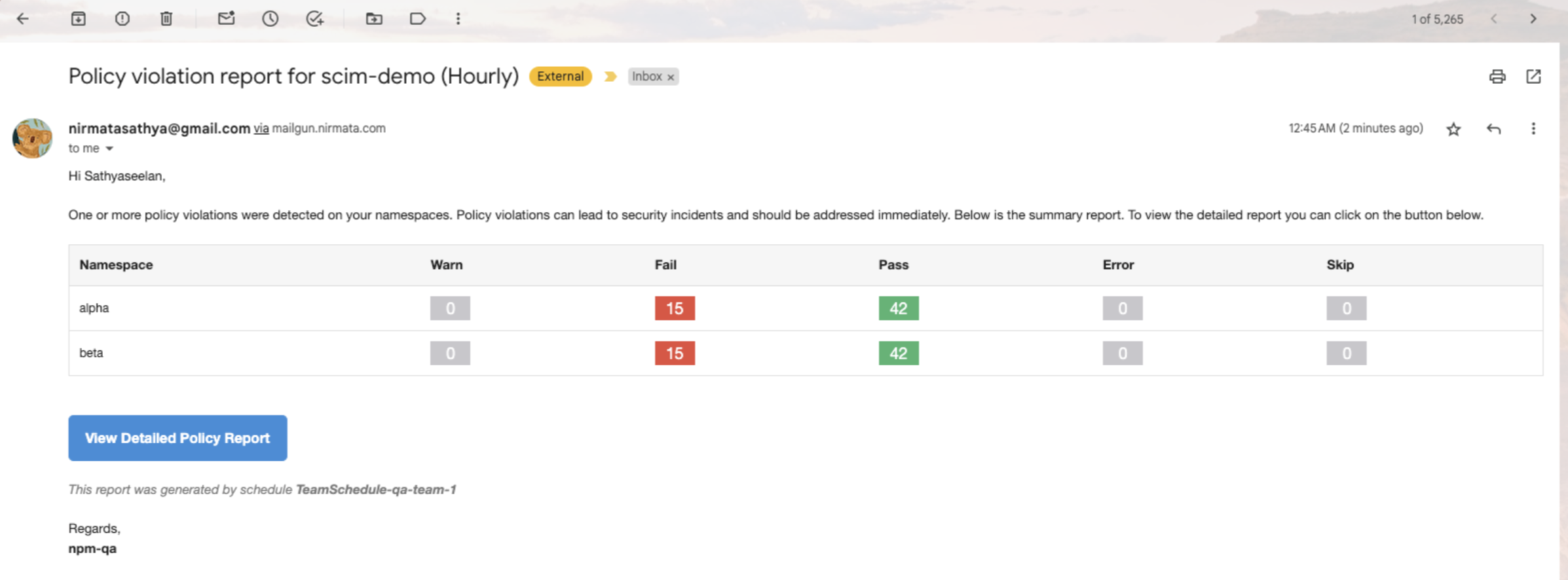
Automatic report scheduling is the capability to be able to share Policy Reports with Teams on a recurring basis. If enabled, the reports are shared via emails for the namespaces that each Team has access to.
To set up automatic report scheduling for Teams:
1. Log into Nirmata Control Hub and go to **Identity & Access**>**Teams**. The page shows the list of Teams with the total number of members associated with each particular Team. The provisioned Team along with the associated users should be visible within the list.
2. Go to the provisioned Team and click on the **Schedule** button located at the right top corner to schedule email notifications containing the policy reports.
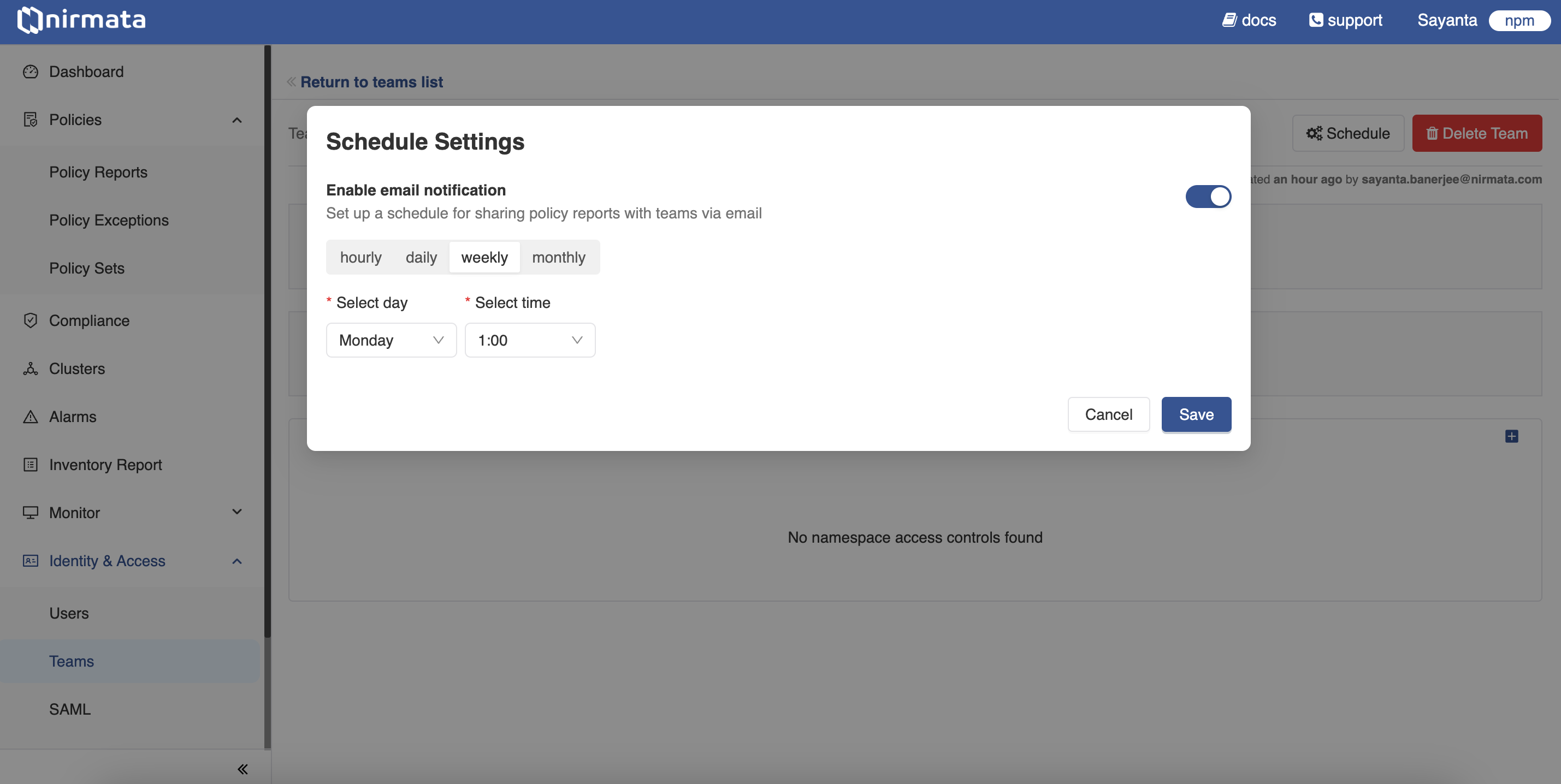
3. The schedule can be set to hourly, daily, weekly, or monthly.
**a.** To schedule reports hourly:
- Click on the **hourly** tab.
- Click **Save**.
**b.** To schedule reports daily:
- Click on the **daily** tab.
- Select the time from the dropdown list.
- Click **Save**.
**c.** To schedule reports weekly:
- Click on the **weekly** tab.
- Select the day and time from the dropdown lists.
- Click **Save**.
**d.** To schedule reports monthly:
- Click on the **monthly** tab.
- Select the date and time from the dropdown lists.
- Click **Save**.
4. Upon scheduling, the policy reports will be sent automatically to the email address of the respective members of the Teams at the specified times.